
Protect the balance you worked for
Add plugins and change settings without constantly rebuilding the relationship between the track and the rest of the mix.
Mix Balance Preservation Plugin
 macOS (VST3 / AU)
 Windows (VST3)
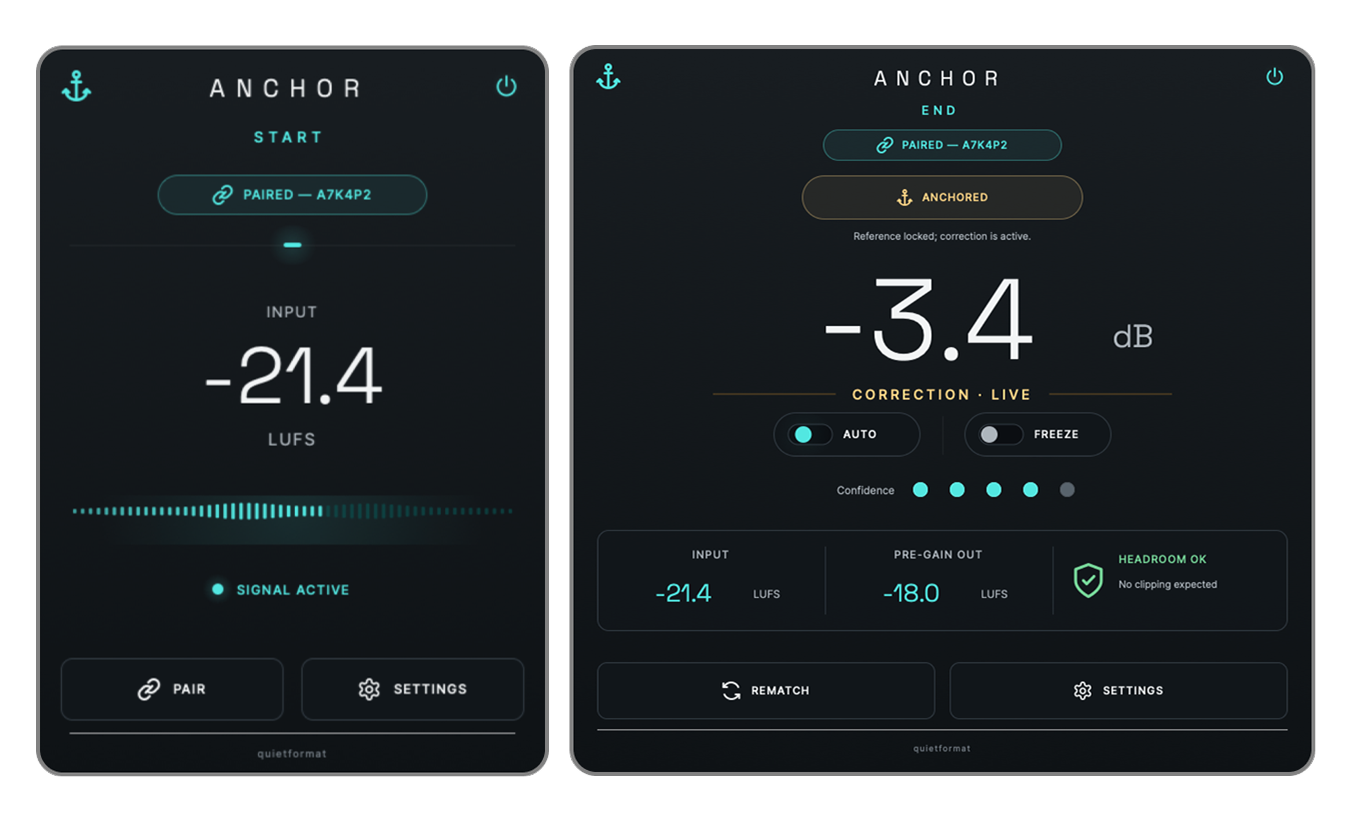
ANCHOR
ANCHOR is a free plugin that corrects overall level changes introduced by compressors, EQs, saturators, and other processors. When processing makes a signal louder, ANCHOR turns it down. When processing makes it quieter, ANCHOR brings it back up.
The tone and dynamics created by your processing stay intact, while the level balance you established in the mix remains consistent.

Loudness Bias
A plugin only has to raise the level slightly for the result to feel clearer, tighter, and more exciting.
When processing makes the signal quieter, the opposite can happen. A genuinely better sound may feel weaker or less convincing simply because its level has dropped.
These differences make critical listening more difficult and can gradually disturb a mix balance that was already working.
ANCHOR separates simple level changes from the actual sound of the processing. This helps you choose what sounds better instead of choosing what happens to sound louder.
The Everyday Problem
Even after vocals and instruments are carefully balanced, their overall levels can keep changing as plugins are added and settings are adjusted.
Compressor makeup gain may raise a track, while stronger gain reduction can make it quieter. Saturators and clippers often increase average level as they add harmonics and density. EQ boosts can raise the overall level, while broad cuts and low cuts may reduce it.
Before long, every sound decision is followed by another output gain adjustment and another check against the rest of the mix.
ANCHOR corrects these unwanted overall level changes so you can spend less time managing gain and more time making musical decisions.
Keep What Matters
ANCHOR compares matching sections of the same audio before and after processing. If the processed signal is louder, it reduces the overall gain. If the processed signal is quieter, it increases the gain and brings the level balance back toward the reference you established.
Keep the character of the processing.Keep the mix balance you started with.
Why It Belongs in Every Session
Add plugins and change settings without constantly rebuilding the relationship between the track and the rest of the mix.
Reduce the level difference between processed and unprocessed sound so you can judge punch, tone, texture, and detail more objectively.
Spend less time readjusting output gain and rechecking the full mix every time a processor changes the level.
Place ANCHOR around one processor, a full vocal chain, a drum bus, a mix bus, or any other section you want to evaluate.
Hear the Real Difference
ANCHOR helps you judge what the processing actually changed instead of being persuaded by a simple difference in level.
Hear whether the compressor truly improved punch, stability, and envelope, or whether makeup gain simply made it more impressive.
Separate tonal changes from the overall level shifts created by boosts, cuts, and filtering.
Focus on harmonic character, texture, and density without giving the louder result an automatic advantage.
Judge changes in punch, transient detail, and density more clearly instead of responding only to increased average level.
Made for Real Mixing Decisions
Compression, de-essing, EQ, and saturation can each move the vocal level in a different direction. Place ANCHOR around the vocal chain to maintain its established balance while the character continues to evolve.
Gain reduction and makeup gain can both change the output level. ANCHOR makes it easier to judge attack, release, punch, stability, and envelope on their own merits.
Hear the harmonics, weight, and density created by saturation without mistaking an increase in average level for better sound.
Keep your attention on the tonal result, even when broad boosts, cuts, and filters move the signal level.
Preserve the level relationship of drum, vocal, mix, and master buses while adding compression, console color, tape, EQ, or clipping.
Flexible Placement
Compare the level before and after a compressor, EQ, saturator, clipper, or any individual processor.
Manage the combined level change created by a vocal chain, tone chain, dynamics chain, or color chain.
Place ANCHOR around the full processing chain to preserve the level balance established during the mix.
Use it around drum buses, vocal buses, mix buses, and mastering chains to control processing-related level changes.
Two Plugins, One Simple Workflow
START measures the pre-processing reference without changing the audio. END compares the post-processing level and applies the required broadband trim gain.
Place START before the plugin or processing chain you want to evaluate. It measures the reference level while leaving the audio unchanged.
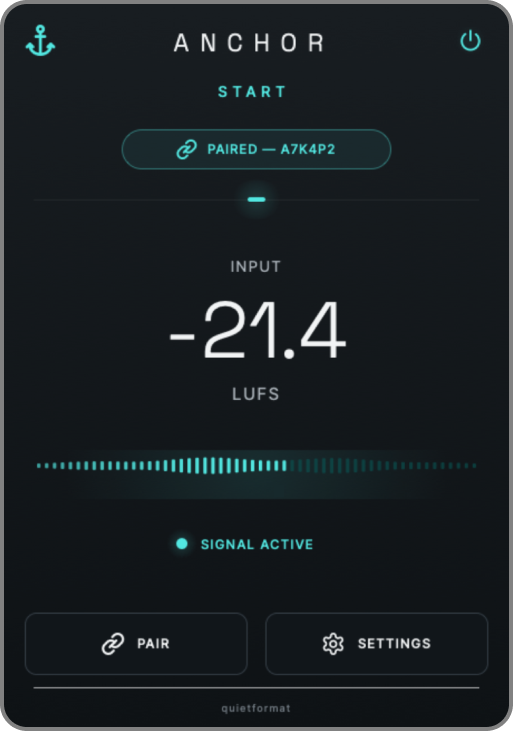
Place END after the processing chain. It compares the processed level against the reference and applies the verified correction.

Simple Placement
Pair START and END, play the music, and continue adding or adjusting processors as needed.
Shape the sound freely. ANCHOR helps preserve the mix balance you established.
Compatibility